Know what your pack weighs before you lift it.
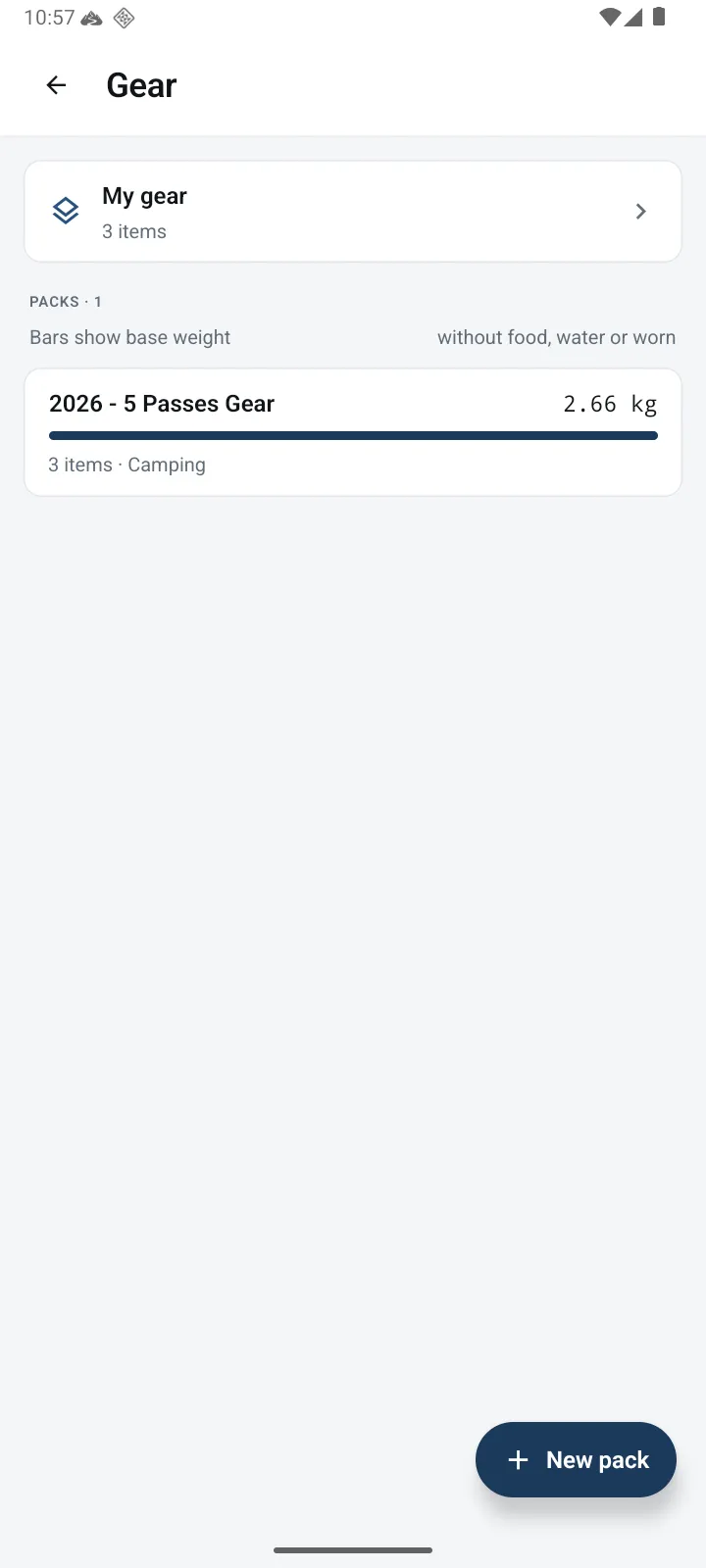
Enter your gear once in My gear, with its weights. Make a pack for each kind of trip, see what it weighs, check it against suggested safety essentials, and tick it off as you pack. Pick a pack for a trip plan and that trip gets a packing checklist of its own.
- Works with no signal
- No account needed
- 1 pack free
Safety suggestions are a starting point, not a complete list, and a pack with nothing missing does not make a trip safe. Before you go, check the conditions, DOC’s gear lists and the Land Safety Code, and carry a distress beacon (PLB).
How it works: From the gear you own to a packed pack.
Add your gear once, make packs from it, see where the weight is, and pack from a checklist. Here’s the whole flow, step by step.
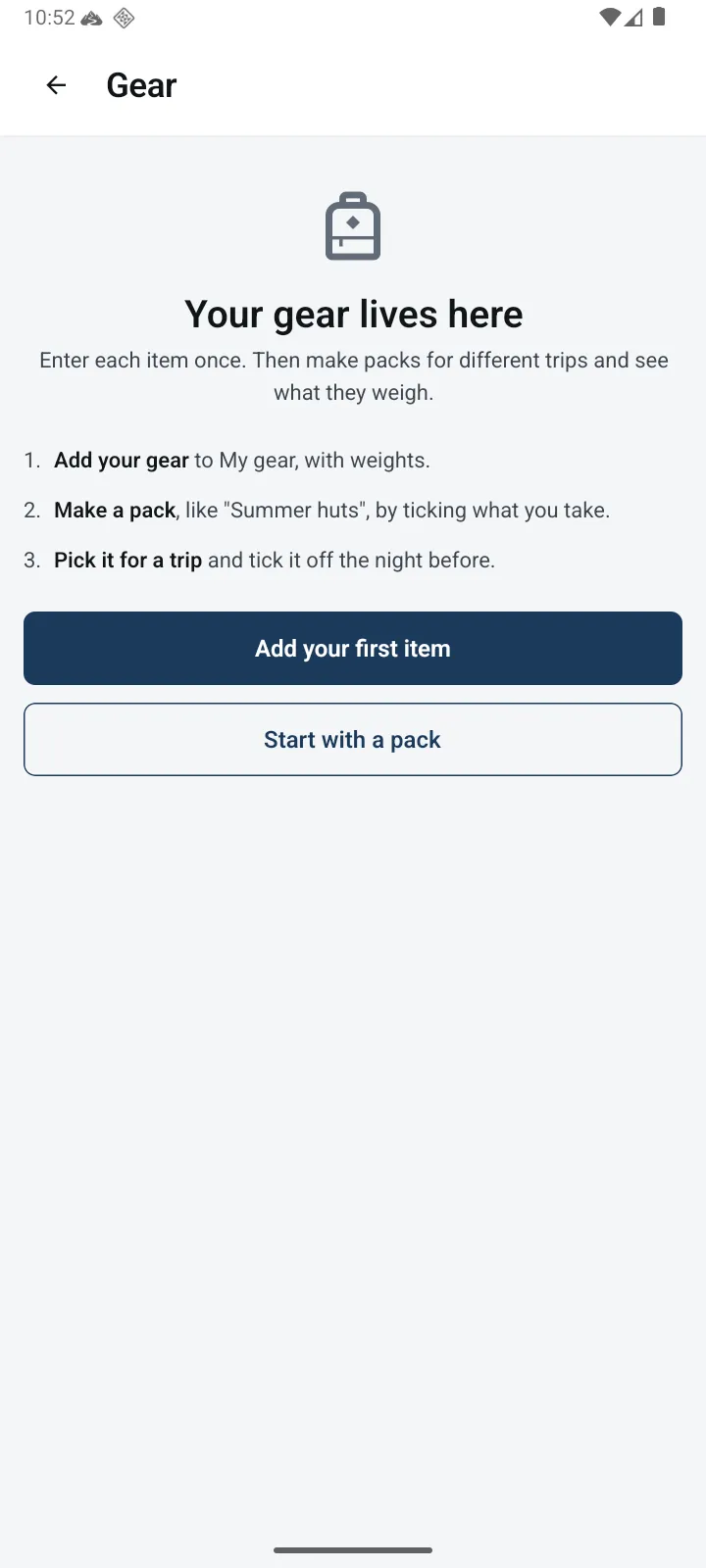
Open Gear from the menu
Gear is in the menu under My data, beside Tracks and Markers. The first time you open it, it shows the three steps: add your gear, make a pack, and pick it for a trip. Start with Add your first item, or Start with a pack.
Add your gear to My gear
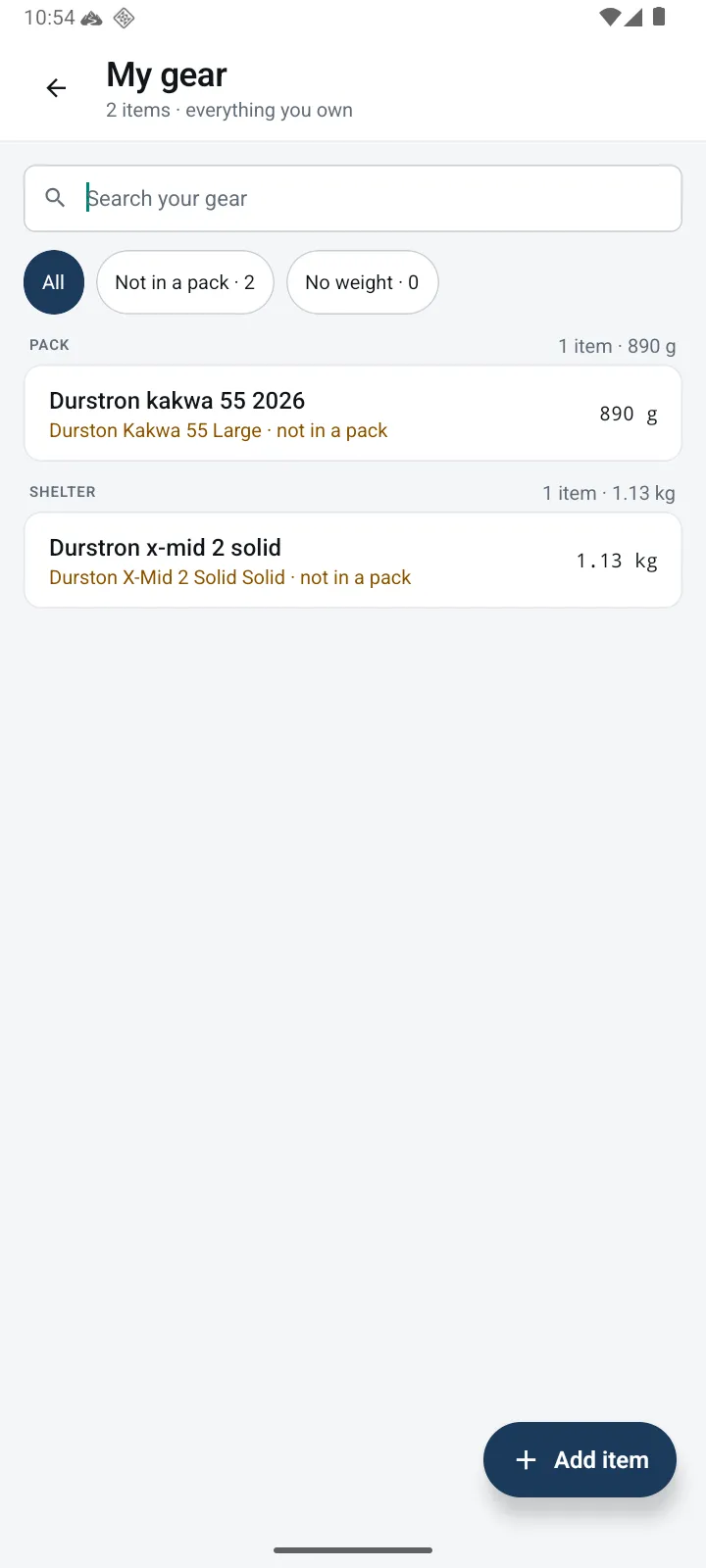
My gear is the list of everything you own. Tap Add item and type the item’s name, then its brand, model, weight and volume if you know them, with variant, year and notes folded away. Choose the section it usually goes in and, for safety gear, its essential type. Search the list, or filter it to items not in a pack or with no weight.
Make a pack
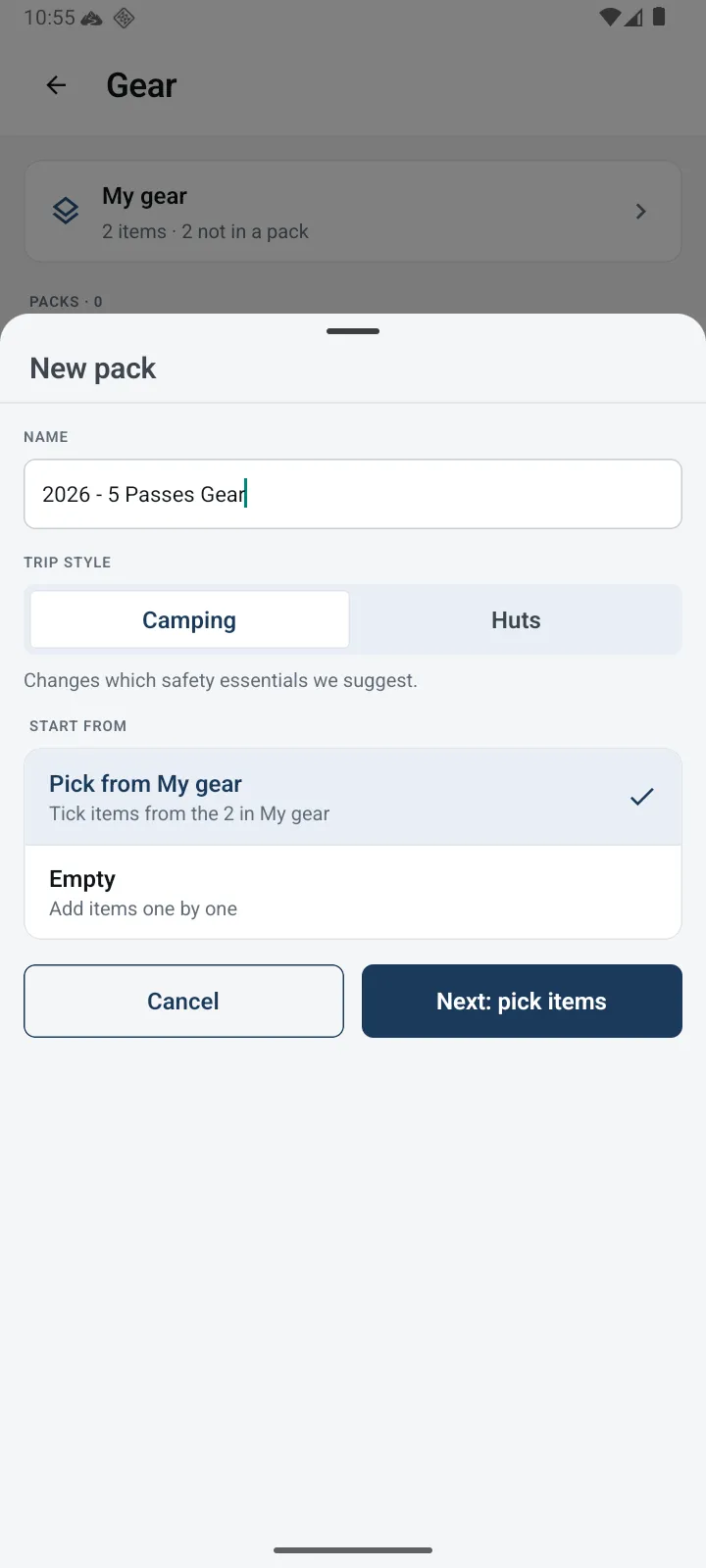
Tap New pack and give it a name, like “Summer huts”. Choose its trip style, Camping or Huts, which changes the safety essentials suggested. Then start by picking from My gear, copy a pack you already have, or start empty.
Tick what it takes
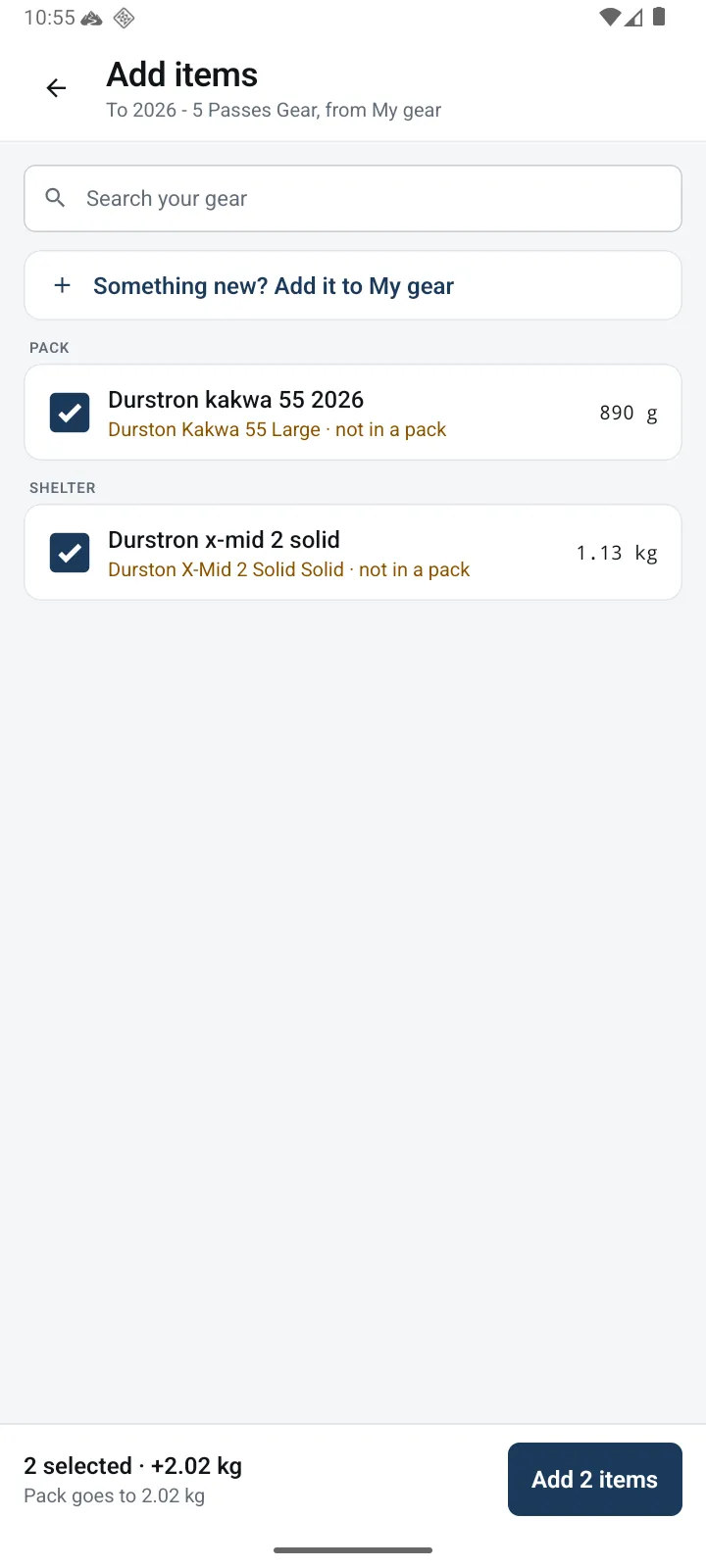
Tick items from My gear and the footer adds up the weight as you go, then tap Add. Each item goes into the section it usually goes in. Something new? Add it to My gear from the same screen and it is ticked for the pack.
Your pack, section by section
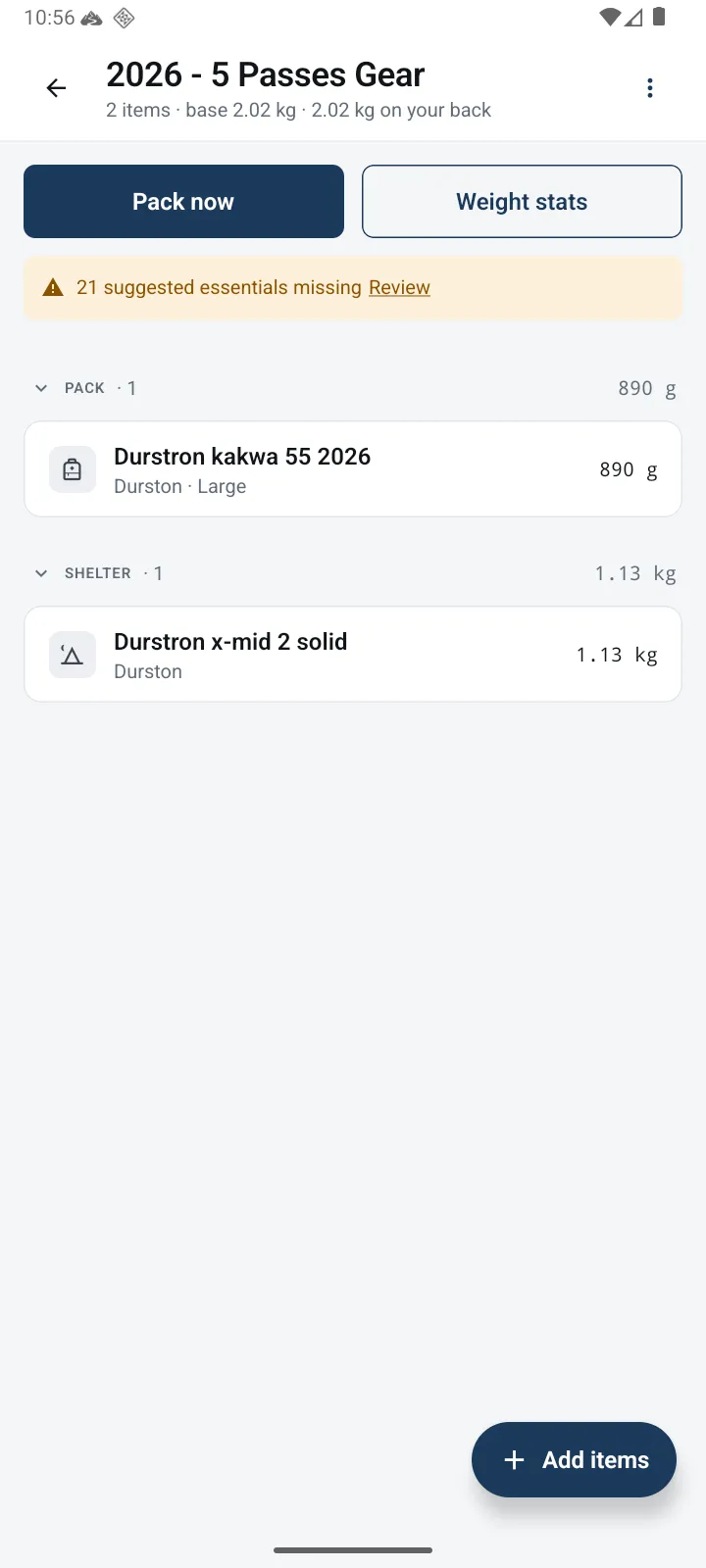
The pack lists its items by section, with each section’s weight and the base weight and weight on your back at the top. Tap an item to set how many you take, or to mark it as worn or as food, fuel or water, so it counts in the right total. The ⋮ menu renames, duplicates or deletes the pack.
- Pack, shelter and sleep system
- Kitchen, water and clothing (carried)
- Worn on trail
- Navigation & comms, and safety & first aid
- Toiletries & hygiene, and electronics
- Food, and optional extras
Review suggested essentials
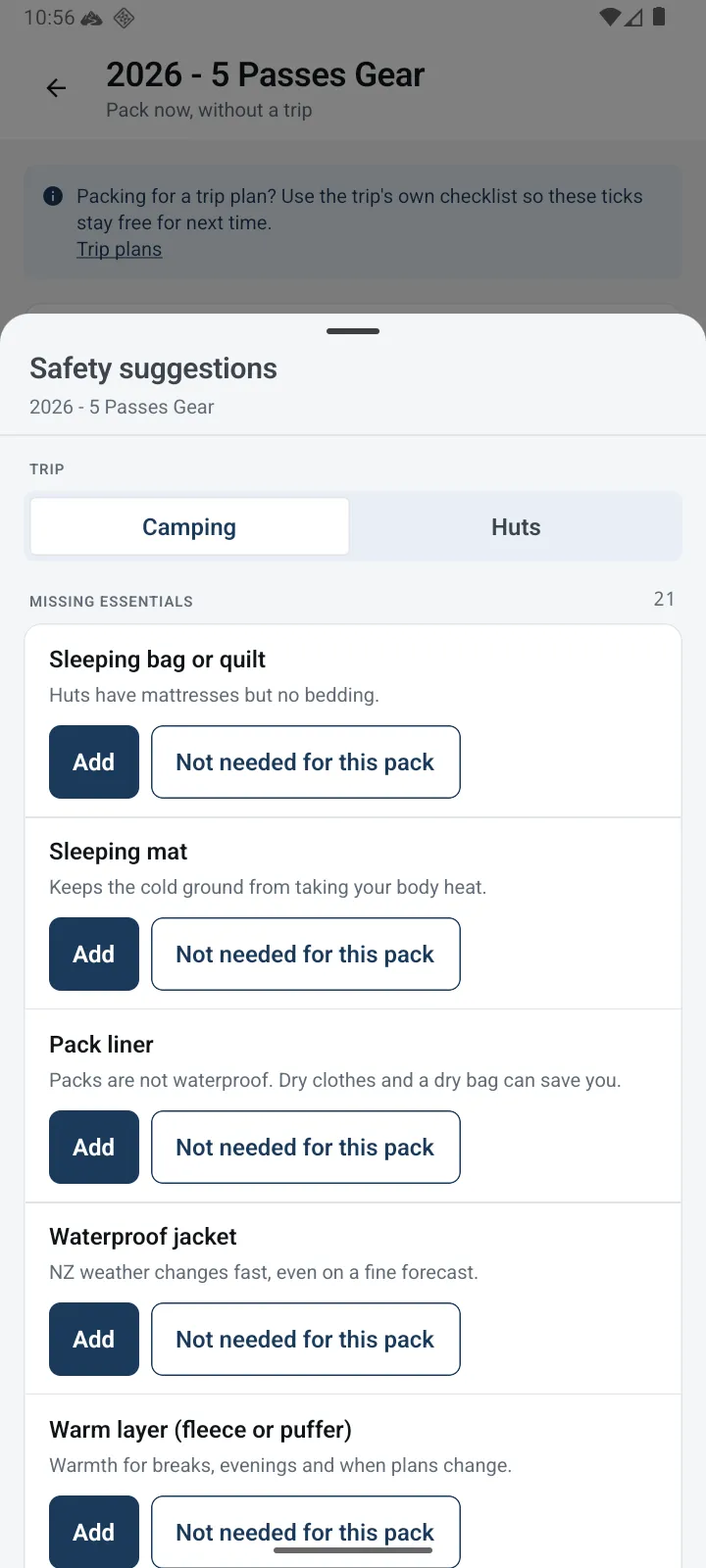
A note on the pack says how many suggested essentials it is missing. Review lists them for the pack’s trip style, each with a line on why it matters. Tap Add to choose one from My gear, or Not needed for this pack to set it aside, with Undo. An item counts only once it has that essential type.
Add a missing essential
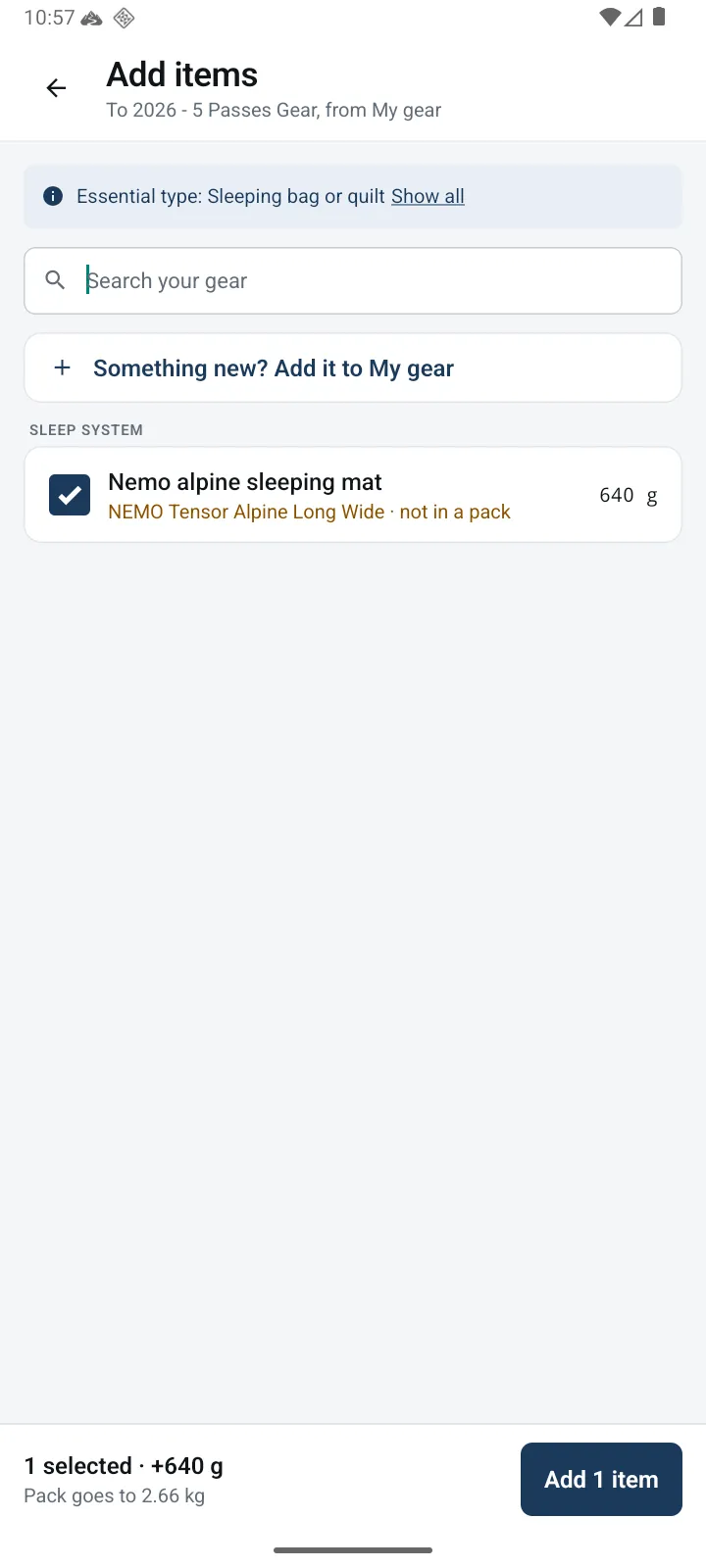
Add opens My gear showing only the items with that essential type, with Show all for the rest. Nothing suitable yet? Add something new to My gear from the same screen, and it is ticked for the pack.
See where the weight is
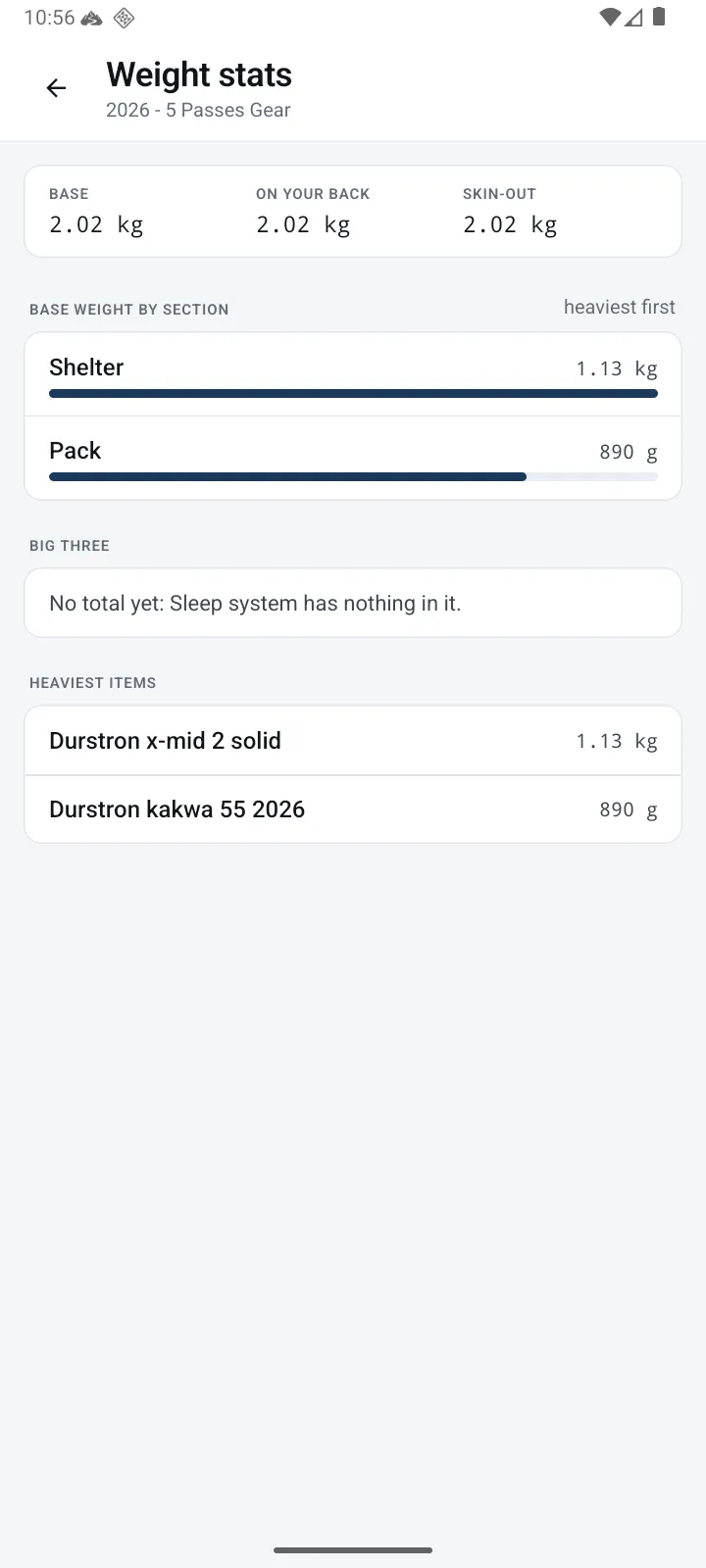
Weight stats shows three totals. Below them come base weight by section, heaviest first; the big three, your pack, shelter and sleep system, with their share of your base weight; and your heaviest items.
- Base: everything in your pack except food, fuel and water
- On your back: base plus food, fuel and water
- Skin-out: on your back plus what you wear
Pack now
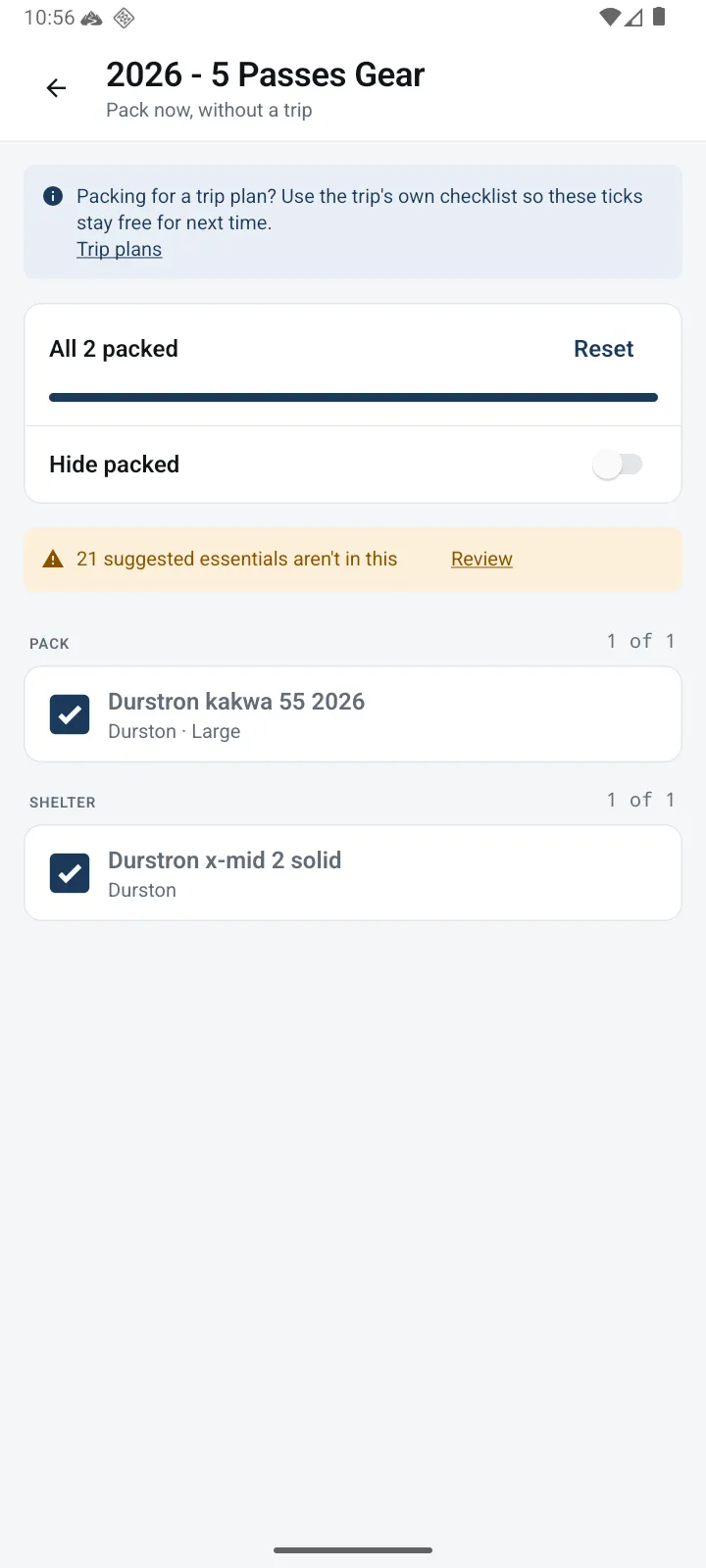
Pack now turns the pack into a checklist. Tick items as they go in, hide what is packed, and Reset to start again. What you wear is listed under Wear and not counted. Open a fully packed list a day later and it offers to clear the ticks. Packing for a trip plan? Use the trip’s own checklist, so the pack’s ticks stay free for next time.
Pick it for a trip
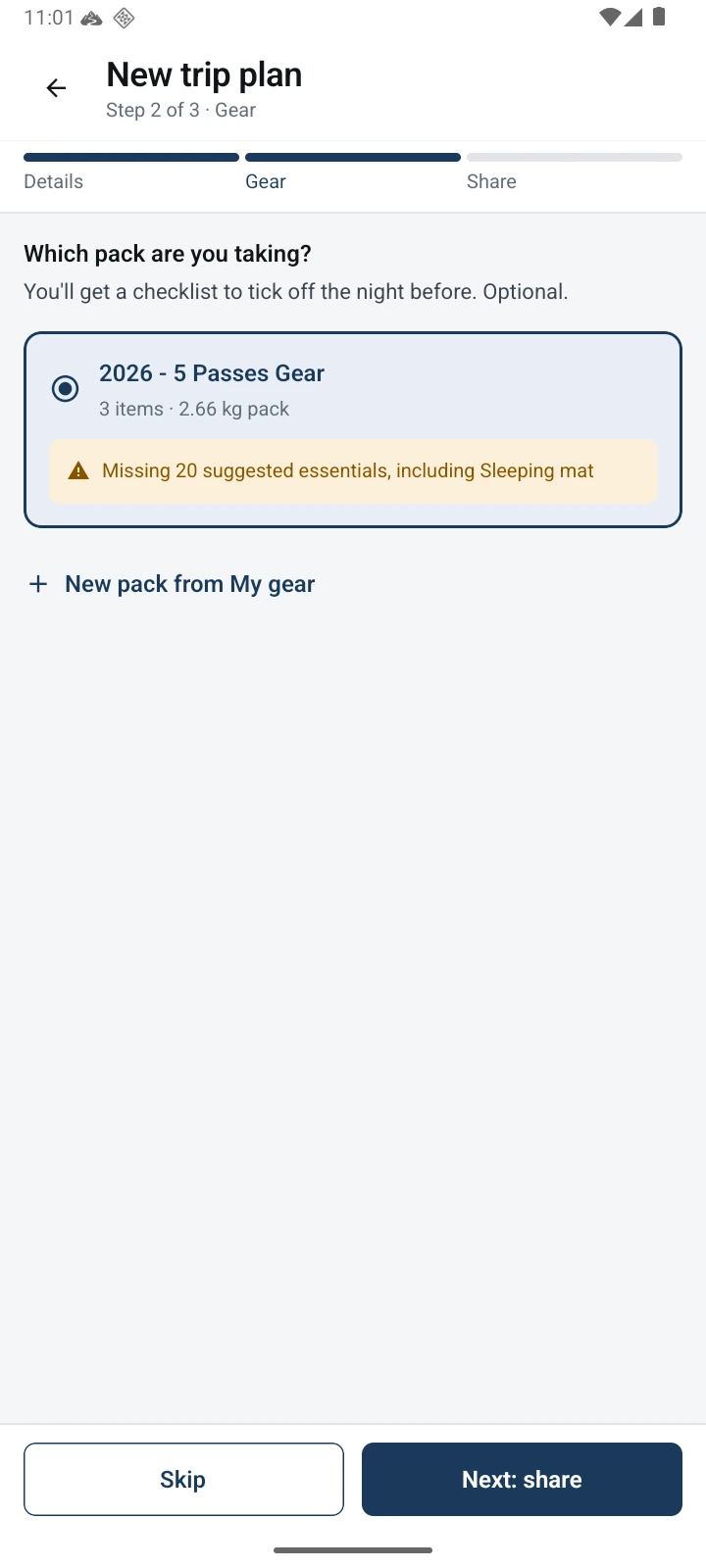
Step 2 of a new trip plan asks which pack you are taking. The trip gets its own packing checklist, and a reminder the day before if packing isn’t finished. Its ticks never change the pack’s own checklist or another trip’s. Anything you forgot goes into the pack, so it is there next time. Your gear list is never part of the plan you share.
Good to know: What Gear does — and doesn’t do.
A few things worth knowing about your gear, your packs and the safety suggestions.
Works with no signal
Adding gear, making packs, weight stats, safety suggestions and packing all work without an internet connection.
Stays on your phone
Your gear, packs and packing ticks are saved on your phone. They are not uploaded to TrailTreks or synced between devices. Your phone’s own backup, such as iCloud or Google, may include them.
One pack free
Gear works without signing in. The free plan includes 1 pack, with as much in My gear as you like, and PLUS removes the limit. Packs you already have stay yours, and you can still edit them and pack from them, even if PLUS ends.
Change an item once
Each item is in My gear once. Change its weight and every pack that carries it shows the new weight. Removing an item from a pack keeps it in My gear; deleting it from My gear asks first and names the packs that lose it.
No weight, no guess
An item without a weight is left out of the totals rather than counted as zero. Weight stats shows how many items have no weight yet, and the No weight filter in My gear finds them.
Not in your trip plan message
When you share a trip plan, your pack and gear list are not included. Your contact gets the trip details and who to call.
Not a safety check
Suggestions follow a fixed list for the pack’s trip style, based on NZ Mountain Safety Council and AdventureSmart guidance. They can’t know your route, the season or the weather, and a pack with nothing missing is not a safe trip on its own.
Questions: Questions about Gear.
What is Gear in TrailTreks?
A place in the app for the gear you own and the packs you make from it. Enter each item once in My gear, make a pack for each kind of trip, see what it weighs, review suggested safety essentials and tick items off as you pack. Open it from the menu, under My data.
How do I add my gear?
In My gear, tap Add item and type its name. Add the brand, model, weight in grams or kilograms, and volume in litres if you know them, and a variant, year and notes if you like. Anything you leave blank can be added later.
What is base weight?
Everything you carry except food, fuel and water, not counting what you wear. On your back adds food, fuel and water, and skin-out adds what you wear too. Mark an item in a pack as worn, or as food, fuel or water, and it moves to the right total; an item marked as both counts as food, fuel or water, so it stays in the weight on your back.
How many packs can I make?
One on the free plan, and as many as you like with PLUS. There is no limit on My gear. If PLUS ends, every pack you have stays: you can still view, edit and pack from them, but not make another.
Where do the safety suggestions come from?
A fixed list based on NZ Mountain Safety Council and AdventureSmart guidance. Camping and Huts suggest different essentials: a tent, fly or bivvy for camping, for example, and an emergency shelter and hut tickets for huts. They are a starting point, not a complete list, so check the conditions, DOC’s gear lists and the Land Safety Code before you go.
How do packs work with trip plans?
Step 2 of a new trip plan asks which pack you are taking, or you can skip it. The trip then gets its own packing checklist, and a reminder the day before if packing isn’t finished. Ticks on a trip’s checklist never change the pack’s own checklist or another trip’s, and anything you add as forgotten goes into the pack for next time.
What happens if I delete a pack?
The app asks first. The pack and its list are deleted, but every item stays in My gear, and any trip plan that used the pack stays, without a pack.
Is my gear uploaded or shared?
No. Your gear, packs and packing ticks are saved on your phone, not uploaded to TrailTreks or synced, and your gear list is never added to a shared trip plan. Your phone’s own backup, such as iCloud or Google, may include them.
Does it need an internet connection?
No. Adding gear, making packs, weight stats, safety suggestions and packing all work with no connection.
Do I need an account?
No. Gear works without signing in, and your first pack is free. PLUS, for unlimited packs, needs you to sign in with Google or Apple.
Download once.
Hike offline.
Free to download, no account needed to explore.

Scan & Go
Open your camera and point it at the code to install.